

How to Extend Laptop Battery Life: The Ultimate 2026 Guide to Maximum Backup
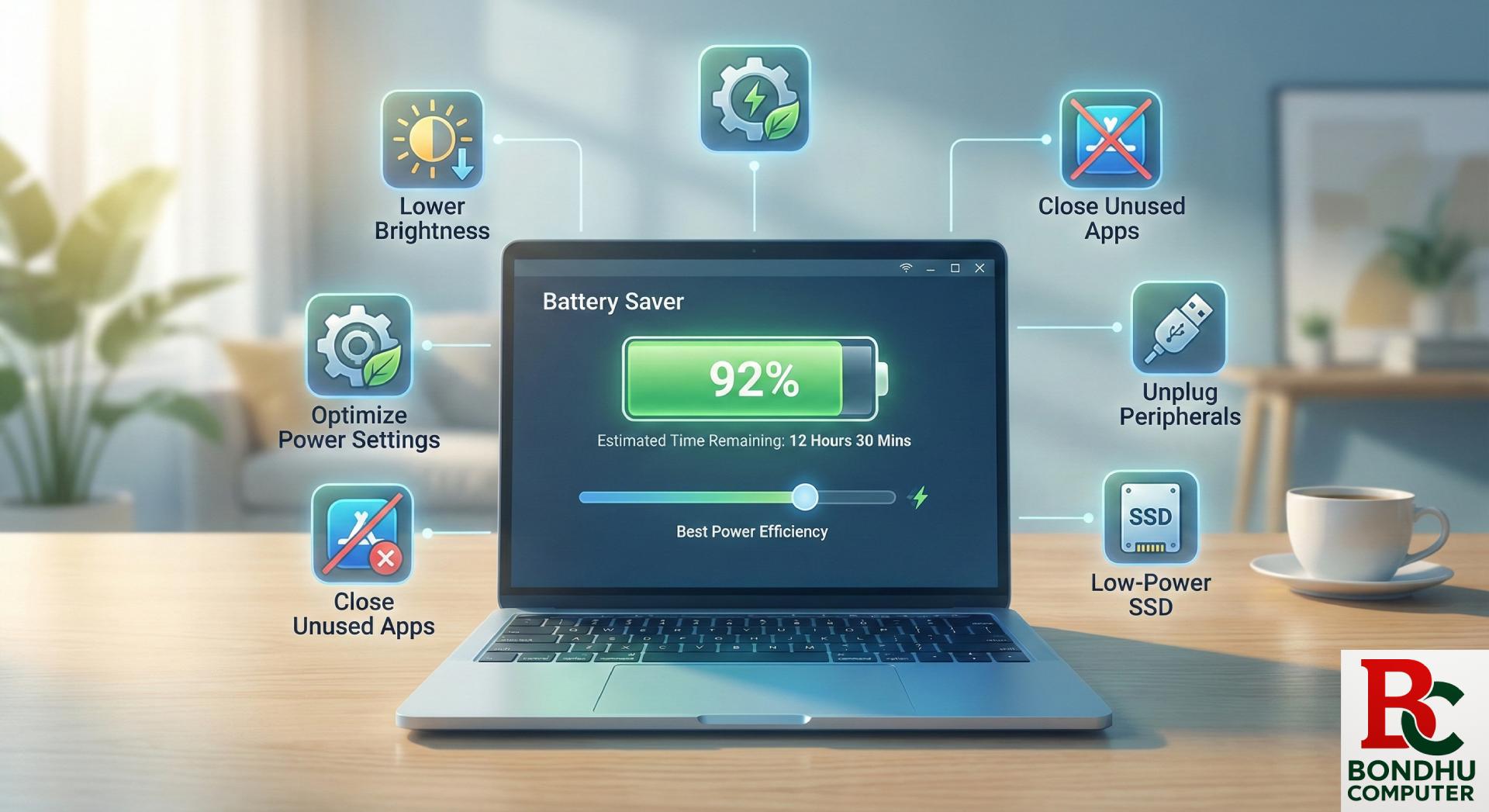
There is nothing more frustrating than being in the middle of an important task and seeing that dreaded “Battery Low” notification. As laptops become more powerful, managing power consumption has become a top priority for users in Bangladesh.
If you are looking for a laptop battery draining fast solution, you’ve come to the right place. At Bondhu Computer, we help hundreds of clients optimize their devices. In this guide, we will explore professional laptop battery saving tips and technical adjustments to help you increase laptop backup time significantly.
1. Optimize Your Power Management Settings
The quickest way to extend laptop battery life in Windows 10/11 is to let the operating system do the heavy lifting.
- Best Power Settings for Laptop: Click on your battery icon in the taskbar and slide the toggle to “Best Power Efficiency.” This automatically limits background activity.
- Laptop Power Management Settings: Go to Settings > System > Power & Battery. Set your screen to turn off after 2 minutes of inactivity and your device to sleep after 5 minutes when on battery power.
2. Monitor and Restrict Background Apps
Often, the reason your battery dies quickly isn’t the screen—it’s what you can’t see. Background apps battery usage is a silent killer. Go to your battery settings to see which apps are consuming the most energy. If you see apps like Spotify, Chrome, or Steam running when you aren’t using them, close them completely.
3. Professional Hardware Tweaks
Did you know that your storage drive affects your battery?
- SSD Upgrade Impact on Battery Life: If you are still using an old HDD, your laptop is wasting energy spinning mechanical platters. An SSD upgrade can reduce your laptop power consumption, often granting you an extra 30–45 minutes of backup time because SSDs are purely electronic.
- Laptop Overheating Battery Issue: Heat is the enemy of lithium-ion cells. If your laptop fans are constantly loud, the heat will degrade your battery chemically. Ensure your vents are clean and use a cooling pad if necessary.
4. Laptop Battery Maintenance Tips & Best Practices
To keep your battery healthy for years, you need to follow laptop charging best practices.
- The 40-80 Rule: Experts suggest keeping your battery charge between 40% and 80%. Constantly charging to 100% or letting it drop to 0% puts immense stress on the battery cells.
- Laptop Battery Calibration: Once every three months, you should perform a calibration. Charge it to 100%, let it drain completely until the laptop dies, and then charge it back to 100% without interruption. This resets the “internal gauge” so your Windows battery percentage remains accurate.
5. Quick Laptop Battery Saving Tips for Daily Use
- Lower Brightness: The screen is usually the #1 power consumer.
- Turn off Keyboard Backlighting: It looks cool but drains power constantly.
- Disconnect Peripherals: Unplug USB mouse, external hard drives, or RGB headphones when not in use.
- Use Airplane Mode: If you are working offline (Word or Excel), turning off Wi-Fi and Bluetooth is a great way to reduce laptop power consumption.
When is it Laptop Battery Replacement Time?
No battery lasts forever. If you’ve tried every laptop battery draining fast solution and your backup is still under an hour, it might be time for a change. You can perform a laptop battery health check by opening the Command Prompt and typing powercfg /batteryreport. If the “Full Charge Capacity” is significantly lower than the “Design Capacity,” your battery is worn out.
Frequently Asked Questions (FAQ)
Should I charge my laptop to 100% or 80%? For daily use, charging to 80% is the laptop charging best practice. It can double the total lifespan of your battery compared to always keeping it at 100%.
How do I make my laptop battery health 100% again? Unfortunately, battery health is a physical degradation of chemical cells. You cannot “reset” health back to 100% via software. Only a laptop battery replacement will restore full capacity.
What is the 40-80 rule for laptop batteries? It is the practice of keeping your battery level between 40% and 80% to minimize “cycle wear.” This helps extend laptop battery life over several years.
What kills a laptop battery the fastest? Extreme heat is the primary killer. Leaving your laptop in a hot car or blocking the cooling vents while doing heavy tasks will destroy battery health very quickly.
How to save laptop battery when not in use? If you aren’t going to use your laptop for a few days, charge it to about 50% and shut it down completely (don’t leave it in Sleep mode).
Get Professional Help Today
Is your laptop struggling to stay powered through a work session? Don’t let a dying battery slow down your productivity.

Get professional laptop battery check & replacement at Bondhu Computer – Complete Tech Service. We provide genuine batteries for HP, Dell, Asus, Lenovo, and MacBook, along with a full system health audit to ensure your power settings are perfectly optimized.